How to Create a Survey in Slack (Step by Step)
How to create a survey in Slack with Workflow Builder, a form link or a survey app, plus how to write one people finish, send reminders and share the results.

11 minutes
Table of contents
How to create a survey in Slack
Most teams run their surveys the same way. Someone builds a form, emails the link, posts it in a channel, and then spends the next week asking people to fill it in. The questions were fine. The problem is that the survey lives somewhere people don't go during their working day.
If your team spends its day in Slack, the survey can live there too. People see it where they're already reading messages, answer in a couple of minutes, and the reminder arrives in the same place instead of in a crowded inbox.
This guide covers three ways to create a survey in Slack, step-by-step setup for each, how to write a survey people actually finish, and a simple one-week routine for sending it, chasing answers and sharing what you learned. At the end you'll find three survey outlines you can copy.
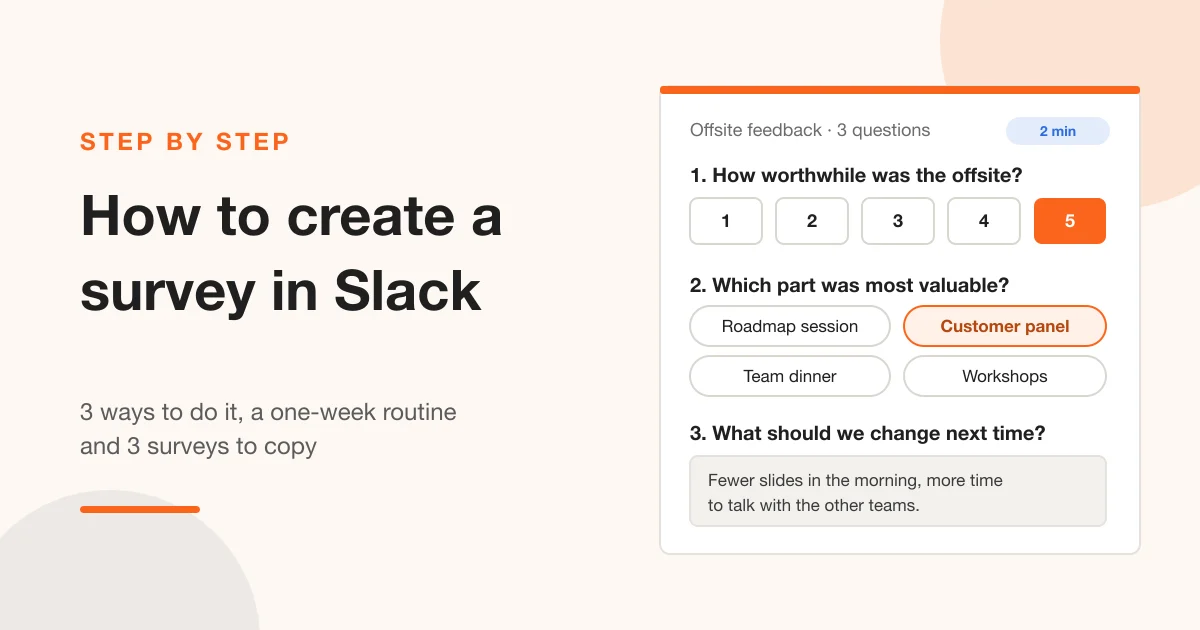
Poll or survey: which one do you need?
A poll asks one question and shows a tally. "Which day works for the team lunch?" is a poll. A survey asks several related questions, often of different types, and you read the answers together afterwards: a rating, a multiple-choice question and a written comment about the same topic.
You need a survey when one answer depends on another for context. A score of 2 out of 5 for "How useful was the offsite?" means little on its own. Paired with "Which session was most useful?" and "What should we change next time?", it becomes something you can act on.
If one question is enough, our guide on how to create a poll in Slack is the faster route. The rest of this article is about multi-question surveys.
Three ways to run a survey in Slack
Slack has no dedicated survey feature, so you have three options. Which one fits depends mainly on two questions: do answers need to be anonymous, and will you run the survey more than once?
- A Workflow Builder form. Built into Slack on paid plans. Good for structured requests where it's fine for names to be attached, such as event sign-ups or equipment requests.
- A link to an external form. Google Forms, Microsoft Forms, Typeform or whatever your company already uses, shared in a Slack message. Good when the survey is long, needs complex branching, or the results have to live in a specific tool.
- A survey app inside Slack. People answer without leaving Slack, and the app handles anonymity, reminders, results and repeat schedules. Good for team feedback, pulse checks and anything you'll run regularly.
Option 1: a Workflow Builder form
Workflow Builder is Slack's built-in automation tool. Slack's help center says it's available on paid plans, and by default any full member can build workflows unless an admin restricts it.
Slack's own example for collecting answers is the Feedback report template, described in its article on collecting information with a simple form. The steps look roughly like this (Slack renames menus from time to time):
- Open Workflows from the sidebar and go to Templates. Pick the Feedback report template and click Set Up. You can also start a new workflow from scratch and add a form step.
- Give the form a title, then edit, add, delete and reorder the questions.
- Decide where each submission goes. By default the template posts a message in the channel where the workflow was used, mentioning the person who filled in the form and including their answers. You can change the channel and the message.
- Optionally add a Google Sheets step, so every submission is also added as a row in a spreadsheet.
- Click Finish up, name the workflow, publish it and copy the link. Share that link in a channel or a message so people can open the form.
People who manage the workflow can also download the form responses as a file.
Forms work well for anything that's really a request: sign-ups, IT tickets, kudos nominations, ideas for the next all-hands. As a feedback survey they have clear limits. Each response is tied to the person who submitted it, so people are less candid. There's no results summary, so with 40 responses you're counting by hand or building a spreadsheet. And there's no built-in way to remind only the people who haven't answered.
Option 2: share a link to an external form
The most familiar option is to build the survey in a form tool and post the link in Slack. It's also the most flexible: long surveys, conditional logic, file uploads and detailed reporting are all available, depending on the tool.
To make it work well in Slack:
- Write a proper message, not just a link. Say what the survey is about, how long it takes, whether it's anonymous and when it closes. A bare URL gets scrolled past.
- Check the anonymity settings in the form tool itself. Many company form tools record the respondent's email by default when people are signed in. If you promise anonymity, verify that the form doesn't collect it.
- Pin the message in the channel while the survey is open, and post a reminder in a thread before it closes so the reminder stays attached to the original.
The trade-off is that answering means leaving Slack, signing in to another tool and coming back. That extra step is small, but for short, regular surveys it's often the difference between most of the team answering and a handful.
Option 3: a survey app inside Slack
A survey app sends the survey as a Slack message. People answer in a form that opens right there, and the app collects the results. The useful features to look for:
- Several question types in one survey: ratings, single and multiple choice, written answers
- A real anonymous mode, where nobody can see who answered, admins included
- Private delivery, so each person gets their own copy by direct message
- Automatic reminders to people who haven't answered yet
- A results dashboard and a CSV export
- Repeat schedules for surveys you run every month or quarter
You'll find several in the Slack Marketplace. Depending on your workspace settings, an admin may need to approve the app before you can install it, so ask early if the survey has a deadline.
How to create a survey with Polls & Surveys
Polls & Surveys is our app for polls and surveys in Slack. Here's how a survey comes together.
1. Start the builder. Type /poll survey in the channel where the survey should appear. The builder opens with that channel selected. If you'd rather not start from a blank page, pick a template such as Team pulse, Employee NPS, Meeting feedback or Team retrospective, and edit the questions.
2. Add your questions. Each question can take one option, several options, a rating or a written answer. Ratings come as a five-point agreement scale or a 0 to 10 recommendation scale. Mark each question as required or optional. Mixing types is fine: a rating, a multiple-choice question and an open question make a good short survey.
3. Choose the settings. Decide whether the survey is anonymous; in an anonymous survey nobody, including poll admins and workspace admins, can see who gave which answer, and every question says so. Choose when results become visible: live, only to people who answered, after the survey closes, or to poll administrators only. Set a closing time, or close it manually.
4. Pick the delivery. Post the survey as one message in a channel, or, on the Unlimited plan, send a private copy to everyone in the workspace, the members of a channel or selected people.
5. Schedule it or repeat it. Send the survey now or schedule it for later. For a regular check-in, set it to repeat, for example every month or every quarter, and choose when the series ends. Each run keeps its own results, so you can compare one round with the next.
Once it's out, people answer in a form that opens from the message, and their answers are saved after each question. Someone who gets pulled into a meeting halfway through can pick up where they left off. The web dashboard shows the response rate, a chart for every rating question and every written answer. On the Unlimited plan you can remind everyone who hasn't answered with one click, export the results as a CSV and save the survey as a workspace template for others to reuse.
How to write a survey people finish
The best way to raise your response rate is to write a survey that's quick and obviously worth answering.
Keep it short. Three to ten questions covers most needs and takes two or three minutes. If you have twenty questions, you probably have two surveys. Send the second one a few weeks later.
Ask one thing per question. "How clear and useful was the update?" is two questions. Someone who found it clear but useless doesn't know how to answer.
Use one rating scale throughout. Switching between 1 to 5, 1 to 10 and "Poor to Excellent" slows people down and makes the results harder to compare. Pick one and stick with it.
Put easy questions first and open questions last. A couple of quick ratings get people started. Written questions take more effort, so place them at the end and make at least one optional.
Ask about things you can change. If the budget for next year's offsite is already fixed, don't ask how much people would like to spend. Every question should lead to a possible decision.
Write the invitation message. The message that carries the survey matters as much as the questions. Something like this works:
Quick survey about last week's offsite (5 questions, about 2 minutes).
Answers are anonymous: nobody, including the organizers, can see who said what.
We'll close it on Friday at 5 pm and share what we heard, and what we'll change, in this channel next Tuesday.
It says what, how long, who sees answers, when it closes and when people will hear back. Those five details answer almost every reason someone has to skip a survey.
A one-week routine for sending a survey
Most internal surveys don't need to stay open for weeks. A five-working-day window keeps the topic fresh and gives people who are out for a day or two time to catch up.
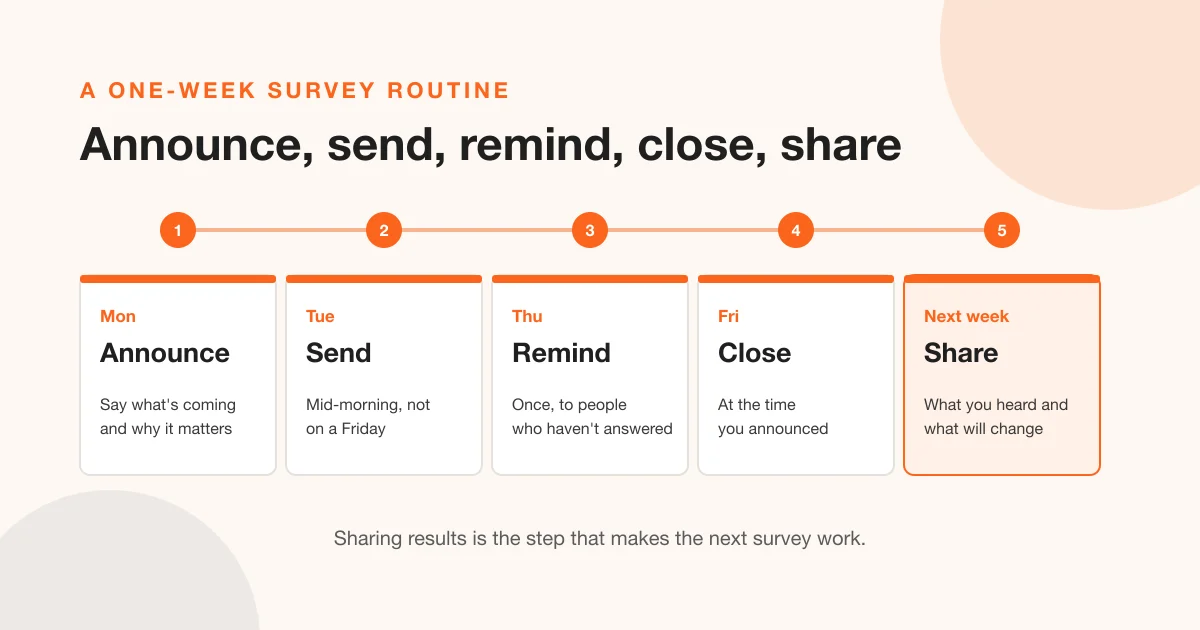
Monday: announce it. A short note in the team channel, ideally from the team lead or whoever will act on the results: what's coming, why it matters, and that it takes two minutes.
Tuesday morning: send it. Avoid Friday afternoons, the first morning after a holiday and the middle of a release. People answer more thoughtfully when they're not catching up.
Thursday: remind once. Send one reminder to people who haven't answered. A survey app can do this privately. In a channel, reply in the original thread and mention the response rate so far, not the names of people who haven't answered.
Friday: close it. Close at the time you announced. Moving the deadline teaches people that deadlines don't mean much.
The following week: share what you heard. Post a short summary in the same channel: the three main things people said, one or two changes you'll make, and a thank you. This is the step that makes the next survey work. When people see their answers lead somewhere, they answer again.
For surveys that repeat, keep the same questions and the same timing every round. That way you can tell whether something really changed or whether you just asked differently.
3 survey outlines you can copy
1. Quarterly team survey (seven questions)
A broad check on how the team is doing, sent anonymously every quarter.
- I have what I need to do my job well. (Strongly disagree to Strongly agree)
- Our team's priorities for this quarter are clear. (same scale)
- My workload has been manageable over the last few weeks. (same scale)
- I can raise a concern on this team without worrying about how it will be received. (same scale)
- Which of these slowed you down most this quarter? (Unclear priorities / Too many meetings / Waiting on other teams / Tools and access / Nothing in particular)
- What should we keep doing next quarter? (open)
- What should we change? (open)
If the team wants to go deeper on the fourth question, our list of psychological safety survey questions has a full set.
2. New tool or process feedback (five questions)
For a few weeks after the team switches to a new tool, a new on-call routine or a new way of planning work.
- How often have you used [the new tool or process] in the last two weeks? (Daily / A few times a week / Once or twice / Not yet)
- It's made my work easier. (Strongly disagree to Strongly agree)
- What's the most useful part so far? (open)
- What's still getting in the way? (open)
- Do you need any help or training to use it well? (Yes / No)
Leave the last question attributed or add an optional "Who should we follow up with?" field if you plan to offer one-to-one help. Everything else works best anonymously.
3. Team event or offsite feedback (six questions)
For an offsite, a team day, a hackathon or a holiday party.
- Overall, how worthwhile was the [event]? (1 · Not worthwhile to 5 · Very worthwhile)
- Which part was most valuable? (one option per session or activity)
- The timing and length worked for me. (Strongly disagree to Strongly agree)
- I felt included throughout the day. (same scale)
- What should we do differently next time? (open)
- Anything else you'd like the organizers to know? (open, optional)
For surveys about recurring meetings, our meeting feedback survey questions include templates for weekly team meetings and all-hands.
Frequently asked questions
Can you create a survey in Slack without an app?
Yes, on a paid Slack plan. Workflow Builder can collect answers to several questions in a form and post each submission to a channel or add it to a spreadsheet. Responses are tied to the person who submitted them, and there's no built-in results summary, so it suits sign-ups and requests better than feedback surveys.
Are Slack Workflow Builder form responses anonymous?
No. A Workflow Builder form records who submitted each response, and the default message names the person. For anonymous answers, use a survey app with an anonymous mode or an external form tool configured not to collect names.
How do I send a survey to everyone in Slack?
Post it in a channel everyone is in, such as your general channel, or use a survey app that can send each person a private copy. Private messages are harder to miss than a channel post, and a reminder to people who haven't answered usually brings in a second wave of responses.
How many questions should a Slack survey have?
Keep most surveys between three and ten questions, which people can answer in two or three minutes. If you need more, split the topic into two shorter surveys sent a few weeks apart.
Related articles
Written by
Keep reading
 How to Run an Anonymous Poll in Slack
Nov 24, 2026