
How to Create a Poll in Slack: 3 Ways That Work
Three ways to run a poll in Slack: emoji reactions, a Workflow Builder form, or a polling app. Step-by-step setup, honest trade-offs and 12 ready-made polls.

10 minutes
Table of contents
How to create a poll in Slack
Most polls in Slack start the same way. Someone asks "Thursday or Friday for the team lunch?" in a channel, six people answer in the thread, two add a thumbs up to the original message, and by the afternoon nobody can say which day won.
A proper poll settles that in under a minute. Slack gives you two ways to run one without installing anything, and a polling app covers what those two can't do, such as anonymous answers, recurring check-ins and results you can export.
This guide walks through all three methods, shows when each one fits, and ends with 12 ready-made polls you can paste straight into your workspace.
Which method should you use?
The right method depends less on Slack and more on the question you're asking. A rough guide:
-
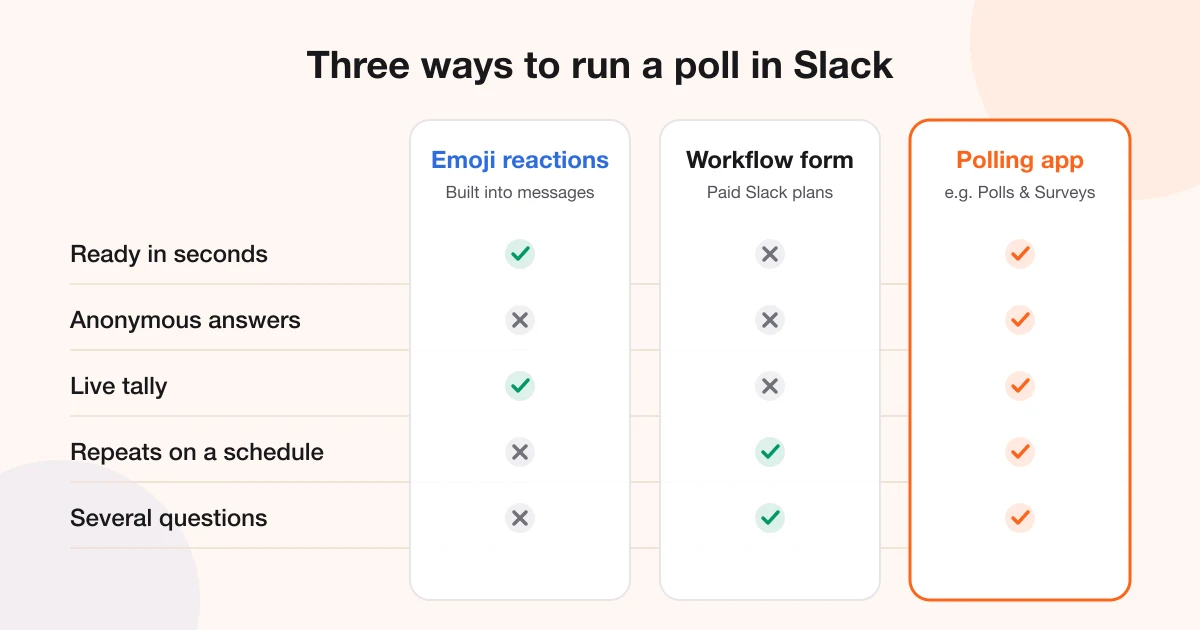
Emoji poll for a quick, low-stakes decision in a small group, where it's fine for everyone to see who voted for what. "Pizza or sushi?" belongs here.
-
Workflow Builder form when you need structured answers from a known group, you're on a paid Slack plan, and it's fine for names to be attached to answers. Sign-ups and requests fit well.
-
Polling app when answers should be anonymous, when you want a live tally with one vote per person, when the same question repeats every week or month, or when you need several questions in one survey.
Method 1: an emoji poll in a message
Slack doesn't have a dedicated poll button. Its help center article on polls points you to two options: a polling app from the Slack Marketplace, or a quick, informal poll built from emoji reactions. The emoji version takes about thirty seconds.
- Write the question, then list each option next to its own emoji. Slack recommends blockquote formatting (start the line with
>) so the options are easy to scan. - Send the message.
- Add one reaction for each option yourself. Teammates then only have to click an existing reaction to vote, instead of hunting for the right emoji.
- Wait for the votes and read the counts under the message.
A typical message looks like this:
Team lunch this week: which day works for you?
> 🍕 Tuesday
> 🌮 Wednesday
> 🍜 Thursday
Vote by Friday noon, I'll book the table after that.
Everyone already knows how reactions work, so emoji polls get answered quickly. The limits show up as soon as the question matters a little more:
- Every vote is public. Hover over a reaction and Slack lists who added it. Fine for lunch, awkward for "How was the all-hands?"
- Nothing stops double voting. People can react to every option, by accident or on purpose.
- Your own reactions count. Each total includes the seed reaction you added, so you subtract one from every option.
- There's no closing time and no reminder. The poll stays open until it scrolls out of sight.
- It's one question. Anything more becomes a thread of half-answers.
Use emoji polls for small, friendly decisions: a lunch spot, a channel name, which day to move standup. For anything you plan to act on, or anything people might hesitate to answer in public, use one of the next two methods.
Method 2: a Workflow Builder form
Workflow Builder is Slack's built-in automation tool, and it's available on paid plans. A workflow that collects info in a form gives you a structured poll: a dropdown or multiple-choice field for the answer, optional text fields for comments, and a message that posts each submission to a channel or sends it to you.
The setup looks roughly like this (Slack renames menus from time to time, but the steps stay the same):
- Open Workflow Builder and create a new workflow.
- Choose how it starts. For a poll, a link or button shared in a channel works well. You can also start a workflow on a schedule if the question repeats.
- Add a step that collects info in a form. Write your question, choose a dropdown or multiple-choice field, and list the options.
- Add a step that sends the responses where you want them, for example a private channel only you and the organizers can see.
- Publish the workflow and share the link or button with the team.
When you need the raw data, people who manage the workflow can download the form responses as a file.
Forms are a good fit for sign-ups, requests and anything where you want the same fields from everyone. As a poll, they have three weak spots. Setting one up takes ten minutes rather than ten seconds. Nobody sees a running tally, so you count submissions yourself. And responses are linked to the person who submitted them, which makes forms the wrong tool for candid feedback.
Method 3: a polling app
A polling app fills the gaps the first two methods leave. The useful ones give you:
- One vote per person, with a tally that updates as answers arrive
- Anonymous responses, so people can be honest about workload or a reorg
- A closing time, after which nobody can change their answer
- Polls that repeat on a schedule, such as a Monday pulse or a monthly check-in
- Surveys with several questions of different types
- Reminders for people who haven't answered, and exports for anyone who needs the numbers in a spreadsheet
Search the Slack Marketplace for "poll" and you'll find several. Depending on your workspace settings, an admin may need to approve the app before you can install it, so it's worth asking early if you're planning a team-wide survey.
How to create a poll with Polls & Surveys
Polls & Surveys is our app for running polls and surveys inside Slack. Here's how a poll comes together.
1. Start with the /poll command. Type /poll in the channel where the poll should appear and the builder opens with that channel already selected. If you know what you want to ask, type it in one go, for example /poll Team lunch? | Tuesday | Wednesday | Thursday, and the question and options are filled in for you. Type /poll survey to build a survey with several questions.
2. Choose how people answer. A question can take one option, several options, a rating or free text. Ratings come as an agreement scale from 1 to 5 or a recommendation scale from 0 to 10. If you'd rather not start from a blank page, pick a template: office attendance, team retrospective, meeting feedback, team pulse, availability, team lunch or employee NPS.
3. Set the details under More options. Here you can schedule the poll for later or repeat it weekly, every two weeks or monthly. You can make it anonymous, in which case no one, including poll and workspace admins, can see who answered. You can also decide when results become visible (live, after someone responds, after the poll closes, or to poll administrators only) and when the poll closes: manually, after a set duration, or at a date and time.
4. Pick the delivery. Post one message in a channel, or send the poll as a private message to everyone in the workspace, to the members of a channel, or to selected people. Private delivery is part of the Unlimited plan, along with reminders to people who haven't answered yet and CSV exports of the results.
Recurring polls keep each run separate, so a weekly pulse becomes a series you can compare over time instead of one message that keeps changing. If you're planning that kind of regular check-in, our guide to employee pulse surveys covers cadence and follow-up in more detail.
12 ready-made polls for everyday team decisions
Copy these as they are or adjust the wording to your team. Each one notes the answer type that works best.
-
Office days (several options): "Which days will you be in the office this week?" Monday, Tuesday, Wednesday, Thursday, Friday. Run it every Monday morning so whoever books desks or orders lunch knows the numbers.
-
Meeting time (several options): "Which times work for the planning session on Thursday?" 9:00, 10:00, 11:00, 14:00, 15:00.
-
Team lunch (one option): "Which day works best for the team lunch?" Tuesday, Wednesday, Thursday. Add a second question on food preferences if you're ordering in.
-
Sprint retrospective (free text, three questions): "What went well?", "What could we improve?", "What should we try next?" Collect answers before the meeting so the session starts with real material instead of a blank whiteboard.
-
Meeting feedback (rating, then free text): "How useful was this meeting?" from 1 to 5, followed by "What would make the next one better?" Make it anonymous so the answers are honest.
-
Team pulse (agreement scale, anonymous): "I have the support I need to do my best work." and "My priorities are clear." Add one free-text question: "What is one thing we should improve?" Our list of pulse survey questions has more statements you can rotate in.
-
Workshop interest (several options): "Which workshop would you sign up for next quarter?" Presenting skills, SQL basics, Negotiation, Writing clear docs.
-
Project name (one option): "Which name should we use for the new project?" List three or four shortlisted names, not twenty.
-
Process change (agreement scale): "The new code review process is working better than the old one." Run it two or three weeks after the change, when people have actually used it.
-
Social plans (one option): "What should we do for the end-of-quarter get-together?" Bowling, Cooking class, Escape room, Dinner, Something else (reply in thread).
-
Icebreaker (one option): "Which would you rather have for the rest of the year: a four-day week or a month of paid travel?" Light polls like this give remote teams something easy to talk about. Our employee engagement games have more ideas in the same spirit.
-
Quick blocker check (one option): "Do you have what you need to finish this sprint?" Yes, Mostly, No (I'll message you). The third option tells the lead exactly whom to follow up with.
Tips for polls people actually answer
Ask one thing per poll. "Should we move the offsite to May and switch hotels?" can't be answered with a single click. Split it, or turn it into a short survey.
Write options that don't overlap. "1–2 days" and "2–3 days" leaves the person who means two days guessing. Clean, separate options give you numbers you can trust.
Add an escape option. "None of these work for me" or "No preference" stops people from picking at random just to get the poll out of their way, and it tells you when your shortlist missed the mark.
Say when it closes and what happens next. "Votes close Friday at noon, I'll book the venue right after" gets more answers than an open-ended question, because people know their vote decides something.
Use anonymity for feelings, names for logistics. You need names to know who's coming to lunch. You don't need them to learn whether people find the weekly sync useful, and asking with names attached mostly gets you polite answers.
Close the loop in the thread. Post the result and the decision under the poll. Teams that see their answers lead somewhere keep answering; teams that never hear back stop.
Don't poll for things you've already decided. If the date is fixed, announce it. A poll whose result gets ignored costs more trust than no poll at all. If you're running a regular satisfaction measure such as eNPS, the same rule applies: share what you learned and what you'll change.
Frequently asked questions
Does Slack have a built-in poll feature?
No. Slack's help center suggests two routes: a quick, informal poll built from emoji reactions in a message, or a polling app installed from the Slack Marketplace. Workflow Builder forms can also collect structured answers on paid plans.
Can you make an anonymous poll in Slack without an app?
Not with emoji reactions, because anyone can hover over a reaction to see who added it. Workflow Builder form responses are tied to the person who submitted them too. For anonymous answers you need a polling app with an anonymous mode.
Can I schedule a recurring poll in Slack?
Yes. A Workflow Builder workflow can start on a schedule, and polling apps such as Polls & Surveys can repeat a poll weekly, every two weeks or monthly while keeping each run's results separate, so you can see how answers change over time.
Related articles
Written by